Checklist and Checklist Template Syncing
How to manually connect and download the latest version of a Checklist or Checklist Template when automatic background syncing hasn't happened yet.
Last updated 10 June 2024
Tip: All data syncing happens automatically in the background when the app is running and connected to the internet. If you need the latest Checklist or Checklist Template version immediately, however, you can download them individually.
The Risk Memo app will work offline by default, automatically syncing data in the background. If you’re seeing an old version of a Checklist or Checklist Template, or they’re not opening because they haven’t been automatically synced, here’s how to download them individually:
Connect to the internet
First, connect to the best internet connection available, preferably a strong wifi connection.
Download a Checklist Template
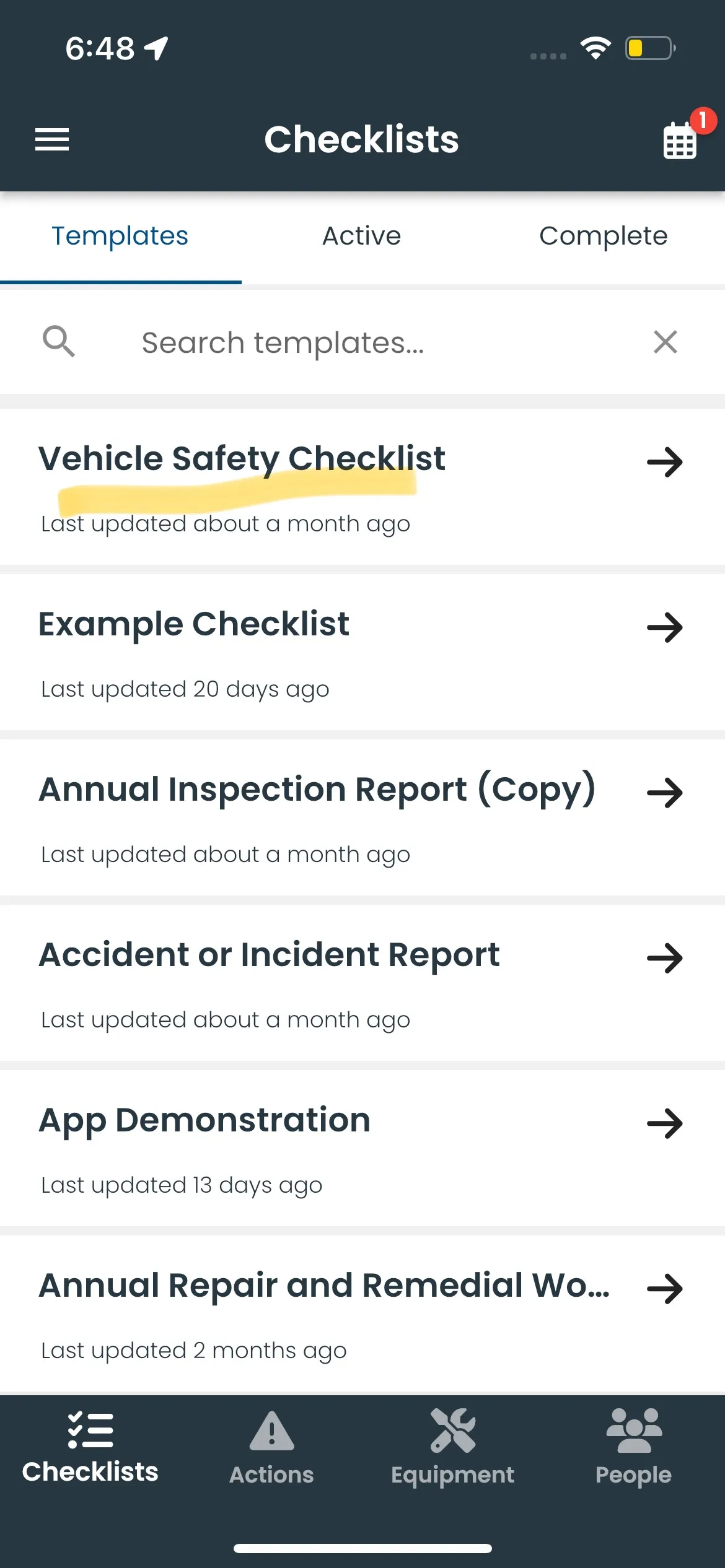
Step 1: Tap on the template name
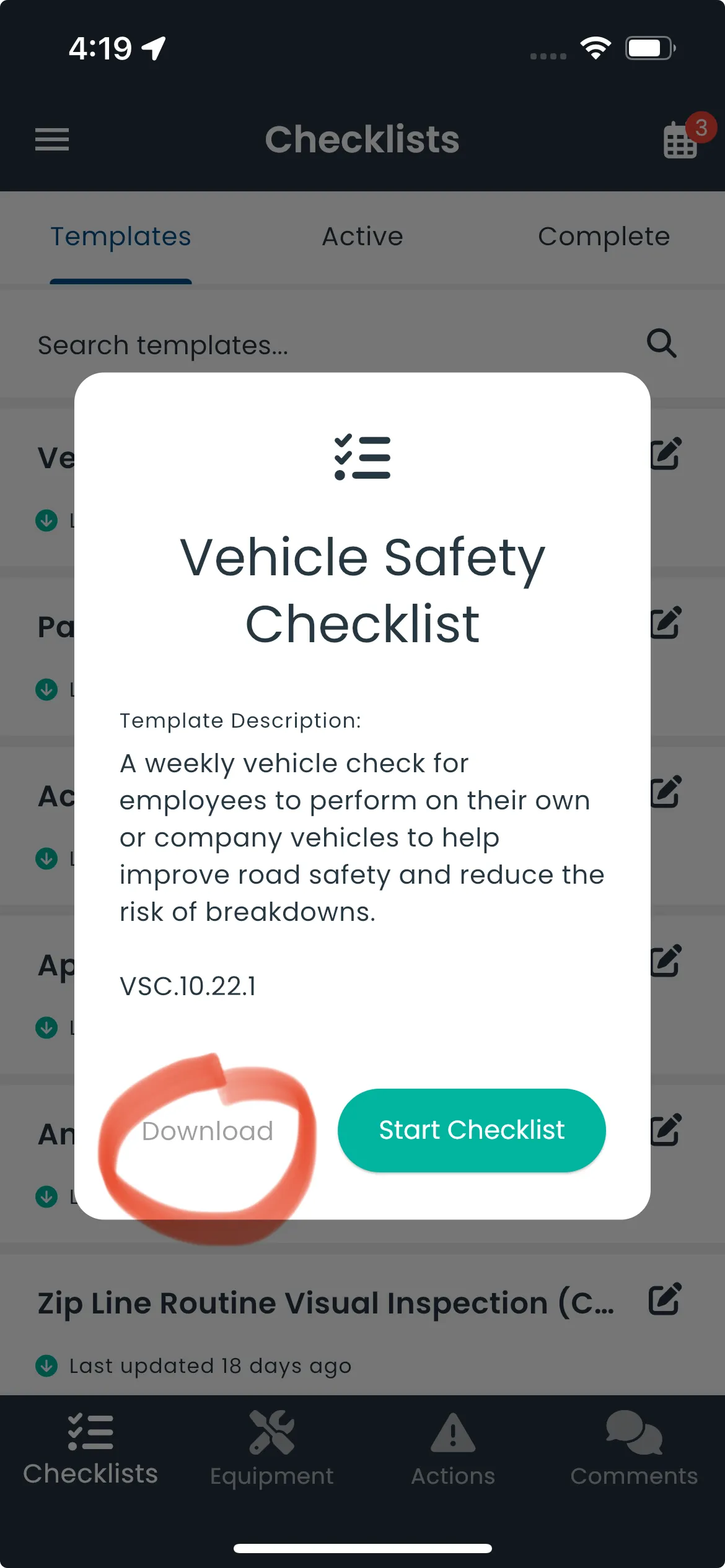
Step 2: Make sure you’re connected to the internet and tap download
Download an Active or Completed Checklist
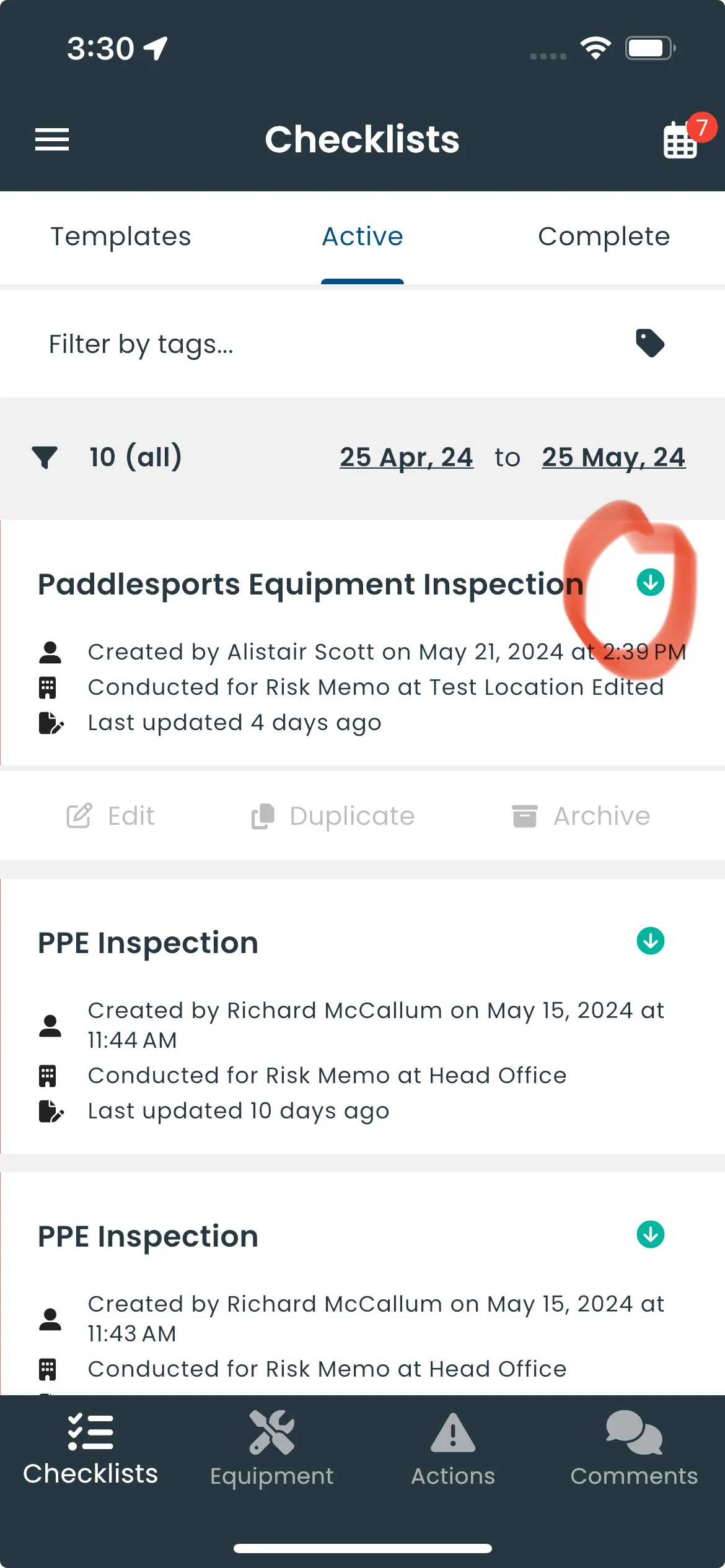
Step 1: From the Active or Completed Checklist screens, swipe down to refresh the list of checklists, then:
If you see the grey circle arrows, a newer version of the checklist is available and needs to be downloaded. Tap the arrows to download.
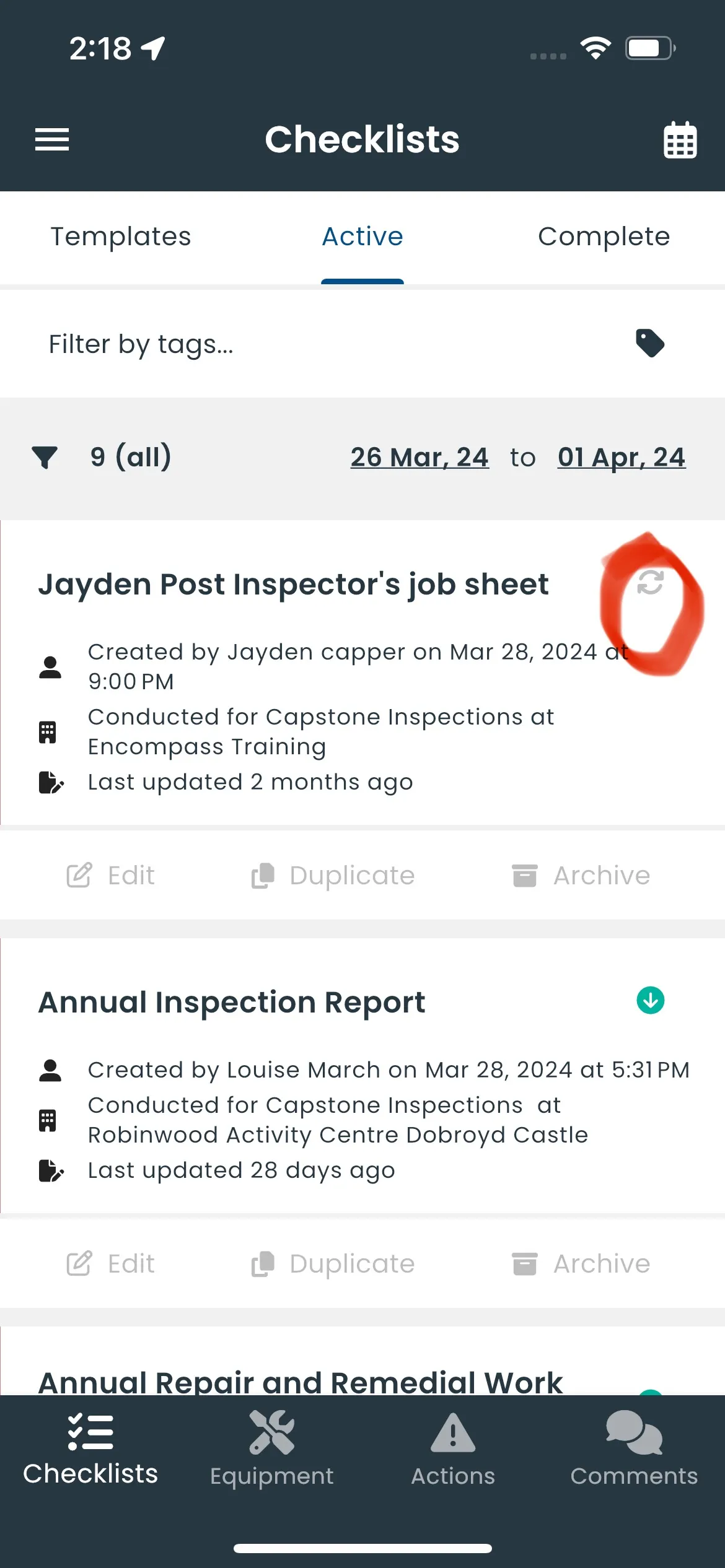
The green downloaded arrow means the latest checklist is available offline.
Note: If another user is editing a checklist whilst offline, we have no way of knowing that theirs is the latest version. Multiple versions will be merged together, but if the same question is answered by two users, the most recent will be merged.